


Sooner or later, every WordPress site needs a little work behind the scenes.
Maybe you are redesigning a page, updating plugins, fixing something technical, or preparing a brand-new site for launch.
During that time, visitors should not land on a half-finished website, broken layout, or random error screen.
That is where maintenance mode plugins come in.

A good plugin can temporarily hide your site, show a branded message, collect emails, display a countdown, allow logged-in users to bypass the page, and make the whole process much more professional.
But there is an important difference between maintenance mode and a coming soon page.
Maintenance mode is usually temporary and should tell search engines that your site will be back soon.
Coming soon mode is better for new websites that have not launched yet and may need email capture, launch messaging, or pre-launch marketing.
I compared the plugins below based on setup, customization, SEO handling, free features, access controls, and ease of use in real-world situations.
Here are the WordPress maintenance mode plugins I would consider first.
This post covers:
- Quick Picks
- Best WordPress Maintenance Mode Plugins
- What To Look For In A WordPress Maintenance Mode Plugin
- Maintenance Mode Vs Coming Soon Mode
- Will WordPress Maintenance Mode Hurt SEO?
- Conclusion: Get The Right Maintenance Mode Plugin
- FAQs About WordPress Maintenance Mode Plugins
Quick Picks
- SeedProd (best overall): The most complete option here, with drag-and-drop editing, maintenance and coming soon modes, templates, and proper 503 handling.
- LightStart (best free all-rounder): A feature-rich free plugin with countdowns, subscription forms, SEO settings, Multisite support, and flexible access controls.
- Maintenance (best for simple maintenance pages): A practical choice for straightforward maintenance screens with custom branding, page exclusions, frontend login, and optional 503 mode.
- CMP (best for coming soon pages): Strong visual customization, countdowns, email capture, multiple page modes, and client preview URLs make it great for pre-launch sites.
- Under Construction (best for quick setup): Easy to switch on, simple to customize, and especially useful if you want scheduled end times and role-based access.
- Slim Maintenance Mode (best lightweight option): No builder, no settings, no clutter. Activate it, get proper 503 maintenance mode, and deactivate it when you’re done.
New to WordPress? Here is our quick guide on how to install a WordPress plugin before you get started.
Best WordPress Maintenance Mode Plugins
| Plugin | Best For | Free Version | 503 Support | Main Strength | Standout Feature |
|---|---|---|---|---|---|
| SeedProd | Best overall | Yes | Yes | Full visual page-building workflow | Drag-and-drop maintenance and coming soon builder |
| LightStart | Best free all-rounder | Yes | Yes | Strong free feature set | Countdown, forms, SEO controls, and Multisite support |
| Maintenance | Simple maintenance pages | Yes | Yes | Fast setup with useful access controls | Frontend login and page exclusions |
| CMP | Coming soon pages | Yes | Yes | Deep visual customization | Themes, countdowns, email capture, and preview URLs |
| Under Construction | Quick setup | Yes | Yes | Simple on/off workflow | Automatic end date and role-based access |
| Slim Maintenance Mode | Lightweight use | Yes | Yes | Minimal overhead | No settings — activate it and you’re done |
1. SeedProd – Best Overall
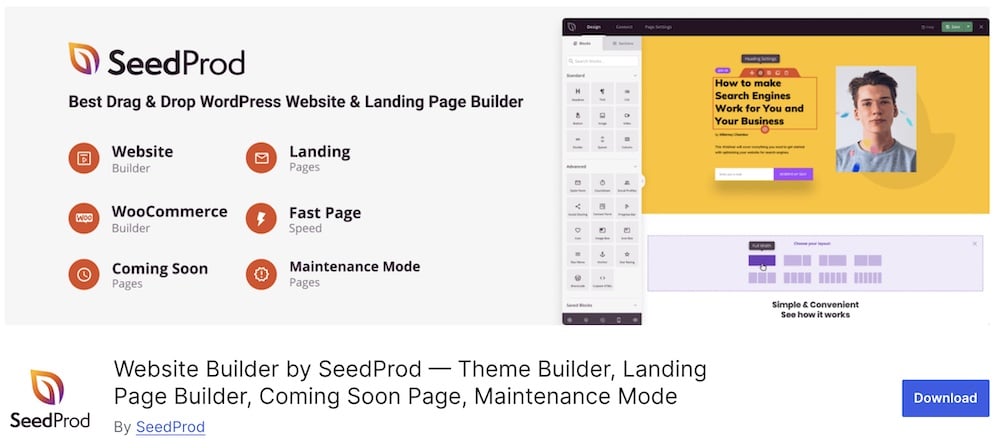
SeedProd is much more than a basic “site under maintenance” switch.
You can build a custom maintenance page with its drag-and-drop editor, choose from ready-made templates, preview changes live, and keep the design completely separate from your regular WordPress theme.
The free version already includes maintenance mode, coming soon pages, and landing pages, making it useful even if you do not want to upgrade.
One detail I especially like is how SeedProd handles the technical side properly.
Maintenance Mode returns an HTTP 503 status, while Coming Soon Mode uses a normal 200 response.
Yes, you can choose the right setup depending on whether you are temporarily updating an existing site or preparing a new one for launch.
Why We Like It
SeedProd gives you much more CONTROL over what visitors see while you work behind the scenes.
The visual builder is easy to use, the maintenance page can look completely different from your normal theme, and logged-in users can still access the actual website.
If you later need email marketing integrations, WooCommerce blocks, more templates, or full theme-building tools, the Pro version gives you room to expand.
Best Features
- Drag-and-drop maintenance page builder
- Free maintenance and coming soon modes
- Proper 503 response for maintenance mode
- Responsive templates and live previews
- Logged-in users can bypass the maintenance page
Best for: Users who want the most complete all-around solution
Free version includes: Maintenance mode, coming soon pages, landing pages, templates, and drag-and-drop editing
Free version doesn’t include: WooCommerce integrations, premium blocks, and the full theme builder
Active installations: 700,000+
GET YOUR SEEDPROD PLUGIN NOW!2. LightStart – Best Free All-Rounder
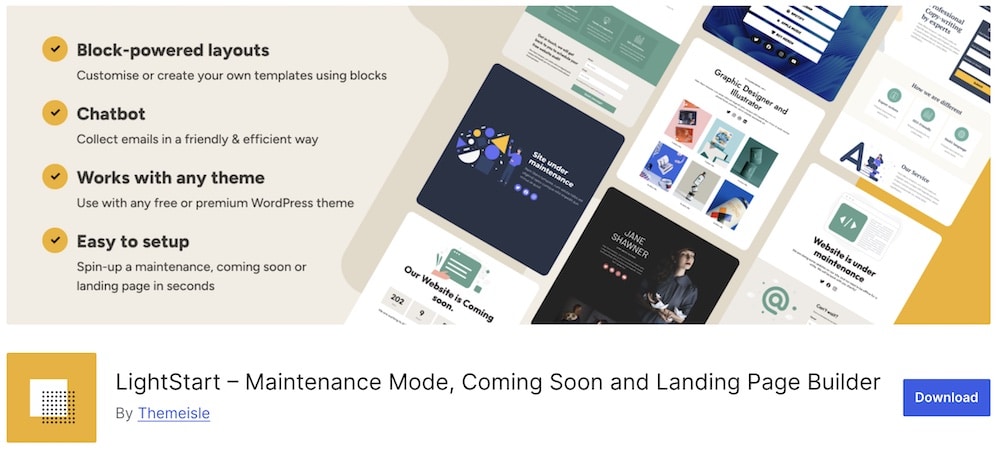
LightStart is a great choice if you want plenty of control without paying for a premium upgrade.
You can use the plugin to create maintenance pages, coming soon pages, and standalone landing pages.
Moreover, feel free to customize colors, text, backgrounds, social icons, countdown timers, contact forms, and subscription forms, while admins and other permitted users can still access the real site behind the scenes.
It also supports WordPress Multisite, URL exclusions, SEO settings, GDPR options, and CSV exports of subscribers.
That is a LOT for a free plugin.
Why We Like It
LightStart hits a sweet spot between simplicity and flexibility.
You can quickly activate maintenance mode, but there is enough depth to build something much more useful than a plain “back soon” screen.
The countdown timer and subscription form are especially handy for launches, while URL exclusions let you keep selected pages accessible.
One thing to note is that Themeisle warns about potential conflicts with caching plugins, so clear your cache carefully when making changes.
Best Features
- Maintenance, coming soon, and landing page modes
- Countdown timer and subscription form
- URL exclusion controls
- WordPress Multisite support
- SEO and GDPR settings
Best for: Users who want the strongest free feature set
Free version includes: Maintenance pages, coming soon pages, landing pages, forms, countdowns, SEO controls, and Multisite support
Free version doesn’t include: No separate premium version is required for the core functionality listed above
Active installations: 400,000+
GET YOUR LIGHTSTART PLUGIN NOW!3. Maintenance – Best For Simple Maintenance Pages
Maintenance keeps the core job straightforward: temporarily close your site, customize what visitors see, and let administrators continue working normally behind the scenes.
Basically, that’s all you really need.
The free plugin includes a drag-and-drop maintenance page builder, custom logo and background options, configurable colors and text, frontend login, page exclusions, Google Analytics support, and more.
It also works with popular caching plugins, which is especially useful when switching maintenance mode on and off.
Why We Like It
Maintenance is a solid choice when you want something QUICK without having to build an elaborate launch page.
I particularly like the ability to exclude specific pages and let users log in directly from the maintenance screen.
You can also control whether the site returns a 503 status, which matters when temporarily taking an existing website offline.
One caveat: the plugin received a major interface rewrite in June 2026, and several recent reviews criticize moving more controls into the Pro version.
The basic maintenance functionality is still there, but I would test the free version first to make sure it includes everything you need.
Best Features
- Drag-and-drop maintenance page builder
- Optional HTTP 503 response
- Custom logo, background, colors, and text
- Frontend user login
- Page exclusion and caching-plugin support
Best for: Simple maintenance pages with useful access controls
Free version includes: Maintenance mode, drag-and-drop editing, 503 control, custom branding, frontend login, page exclusions, and analytics support
Free version doesn’t include: 200+ Pro templates and some advanced customization options
Active installations: 1+ million
GET YOUR MAINTENANCE PLUGIN NOW!4. CMP – Best For Coming Soon Pages
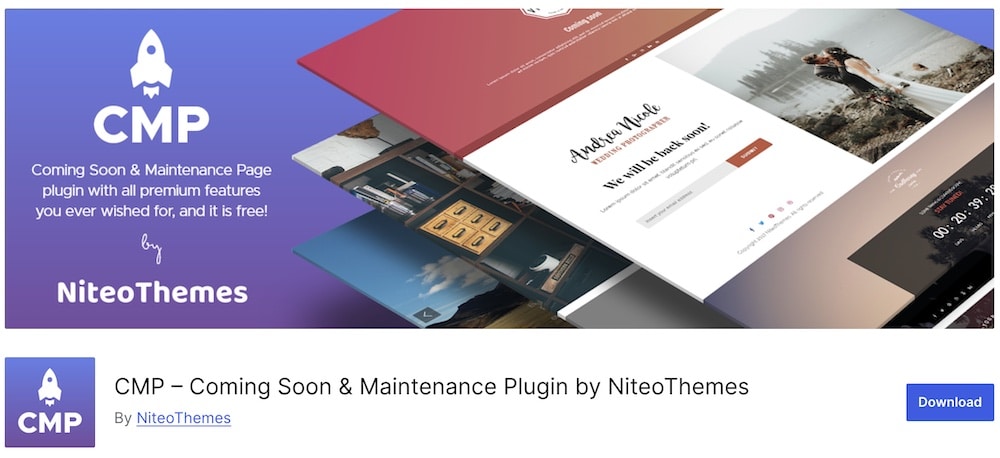
CMP gives you far more design freedom than most free maintenance plugins.
You can start with one of three bundled themes, download additional free or premium designs, then customize the page with logos, videos, image sliders, gradients, typography, social icons, and subscription forms.
It also supports Unsplash backgrounds, countdown timers, and integrations with Mailchimp, MailPoet, and Mailster.
That said, it works especially well for pre-launch pages that need to look polished and collect leads.
The plugin also lets you switch between Coming Soon, Maintenance, and Redirect modes, with either a 200 or 503 response.
Why We Like It
CMP is the most VISUAL free option in this roundup.
I like the combination of ready-made themes, background media, countdown controls, and email capture.
It gives you enough tools to build a proper launch page without immediately reaching for a premium builder.
You also get whitelist and blacklist controls, user-role bypass, a custom preview URL for clients, multilingual support, and SEO settings.
The feature set is excellent, though some recent reviews have raised support concerns, so I would keep that in mind.
Best Features
- Three bundled themes plus downloadable designs
- Coming Soon, Maintenance, and Redirect modes
- 200 and 503 response-code control
- Email capture with Mailchimp and MailPoet support
- User-role bypass and custom preview URL
Best for: Coming soon and pre-launch pages with strong visual customization
Free version includes: Themes, countdowns, email forms, background media, SEO controls, access rules, and 200/503 modes
Free version doesn’t include: Some downloadable premium CMP themes
Active installations: 200,000+
GET YOUR CMP PLUGIN NOW!5. Under Construction – Best For Quick Setup
Under Construction is ideal when you want to hide a site FAST and move on with the actual work.
The plugin is built around a simple on/off workflow, but the free version still gives you plenty to customize.
You can choose from multiple ready-made designs, add your own headline and content, adjust colors with custom CSS, show social links, enable a login button, and even schedule an automatic end date.
The latter ensures maintenance mode switches off by itself.
Access controls are another useful touch.
You can whitelist specific users or entire user roles, allowing admins, clients, or team members to see the real site while everyone else gets the temporary page.
Why We Like It
Under Construction does not try to turn a maintenance page into a full website builder.
That simplicity is the main appeal.
I particularly like the automatic end date and role-based access controls because they solve two very common problems: forgetting to disable maintenance mode and needing to show unfinished work to selected people.
The Pro version adds the drag-and-drop builder, 500+ templates, advanced access controls, Mailchimp, Zapier, tracking, and other extras.
But for a straightforward temporary page, the free version already covers the essentials well.
Best Features
- Quick under-construction mode toggle
- Automatic end date and time
- User and role whitelisting
- Custom content, CSS, and social links
- Compatible with popular caching plugins
Best for: Quickly hiding a site during updates or development
Free version includes: Maintenance mode, ready-made designs, automatic scheduling, access controls, SEO fields, custom CSS, login button, and social links
Free version doesn’t include: Drag-and-drop builder, 500+ Pro templates, advanced integrations, and enhanced access controls
Active installations: 600,000+
GET YOUR UNDER CONSTRUCTION PLUGIN NOW!6. Slim Maintenance Mode – Best Lightweight Option
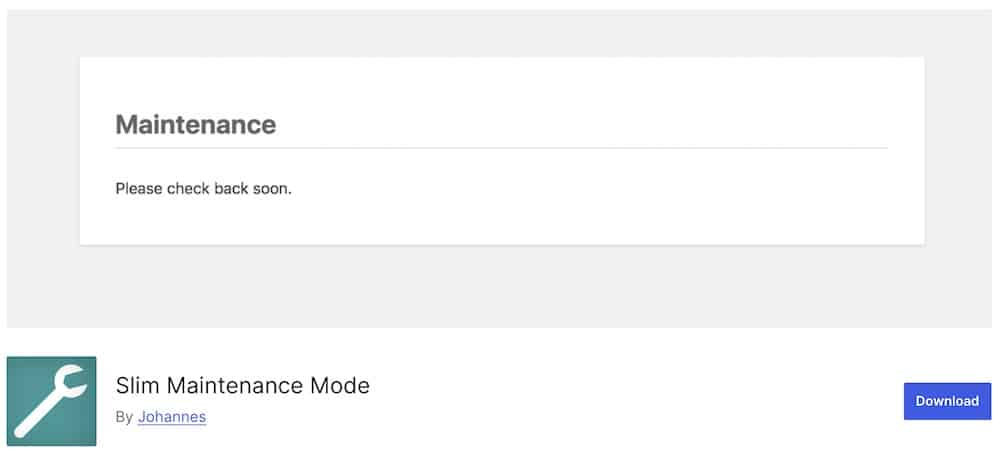
Sometimes you do not need templates, countdowns, forms, or a drag-and-drop editor.
Slim Maintenance Mode is built around that exact idea.
Activate the plugin and visitors see a maintenance message while administrators continue using the real site.
When the work is finished, deactivate it.
There is no settings page and nothing extra to configure.
It also sends a proper HTTP 503 Service Unavailable response and supports popular caching plugins.
Why We Like It
Slim Maintenance Mode does ONE job and stays out of the way.
I like it for quick plugin updates, theme changes, troubleshooting, or short maintenance windows where building a custom page would just waste time.
The backend warning also reminds you when maintenance mode is still active.
There is one obvious tradeoff: you cannot customize the maintenance page or its layout.
That limitation is intentional, so choose another plugin if branding or lead capture matters.
Best Features
- Activate-and-deactivate workflow
- Proper HTTP 503 response
- No settings or configuration required
- Compatible with major caching plugins
- Administrators retain normal site access
Best for: Quick maintenance jobs where simplicity matters most
Free version includes: All plugin functionality, including 503 maintenance mode and cache-plugin compatibility
Free version doesn’t include: Custom page design, templates, countdowns, forms, or advanced access controls
Active installations: 10,000+
GET YOUR SLIM MAINTENANCE MODE PLUGIN NOW!What To Look For In A WordPress Maintenance Mode Plugin
Here is what I would check before installing a plugin:
- HTTP 503 support: This is one of the most important features for temporary maintenance because it tells search engines the site is unavailable only for a short time.
- Coming soon mode: Useful if you are launching a brand-new site rather than temporarily taking an existing one offline.
- Easy access controls: Admins, developers, clients, or specific user roles should be able to bypass the maintenance page when necessary.
- Page exclusions: Sometimes you may want to keep selected pages accessible while the rest of the site is hidden.
- Custom branding: Look for control over logos, backgrounds, text, colors, and typography so the temporary page still matches your brand.
- Mobile-friendly design: The maintenance page should look clean and readable on phones, tablets, and desktops.
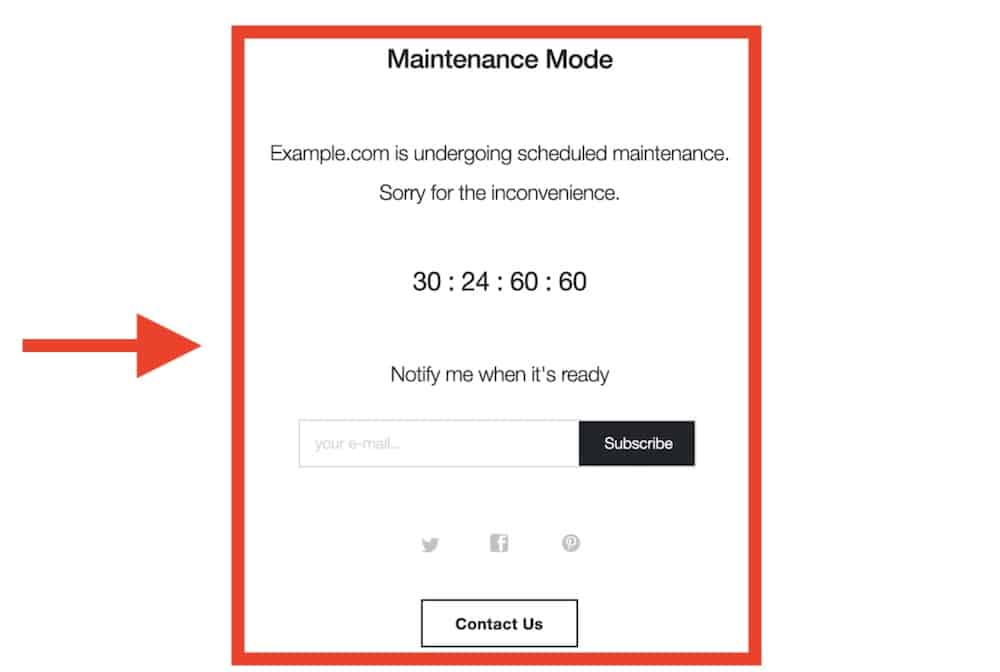
- Countdown timers: Helpful for launches, scheduled maintenance, events, or planned reopening times.
- Email capture: Subscription forms can turn a coming soon page into something more useful by collecting leads before launch.
- SEO controls: Titles, descriptions, indexing settings, and response-code options give you more control over how search engines handle the temporary page.
- Automatic scheduling: A start or end time can save you from forgetting to switch maintenance mode off manually.
- Caching compatibility: This matters because caching plugins can sometimes continue showing old versions of the page after maintenance mode is enabled or disabled.
- Preview links: Handy when clients or team members need to review an unfinished site without logging in.
- Simple setup: You should not need half an hour to activate a temporary maintenance page. The best plugin is often the one you can configure quickly and trust to work properly.
Pro tip: Before making major changes, I also recommend creating a backup with one of these WordPress backup plugins.
Maintenance Mode Vs Coming Soon Mode
Maintenance Mode
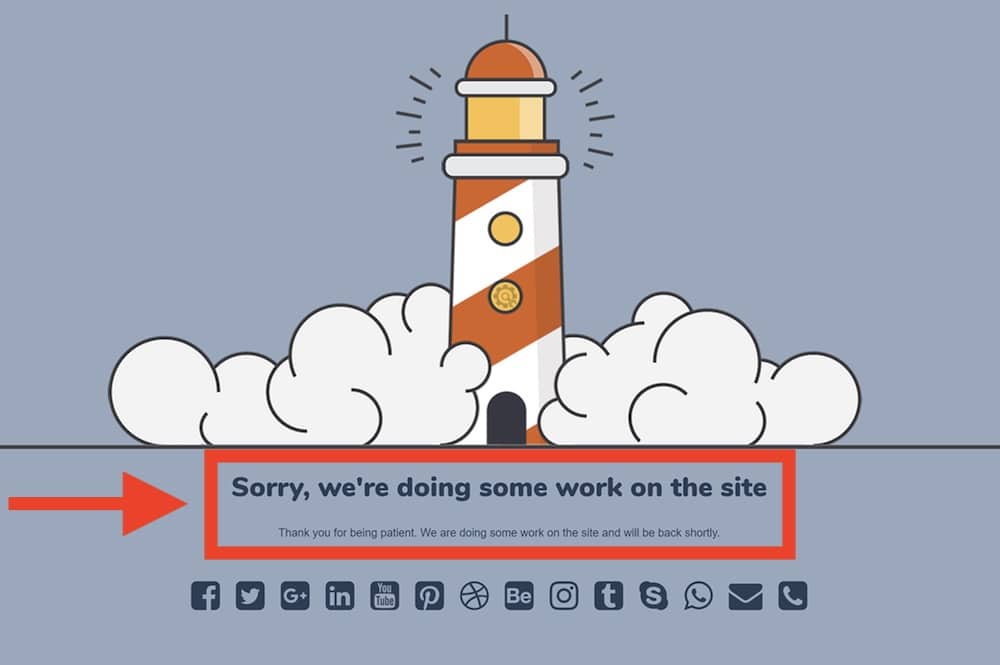
Maintenance mode is for an existing website that is temporarily offline while you make changes.
Use it when:
- Updating WordPress, themes, or plugins
- Redesigning parts of an existing site
- Fixing technical problems
- Moving to a new host or server
- Making database or performance changes
- Working on major site updates
A proper maintenance page should return an HTTP 503 Service Unavailable status.
This tells search engines that the interruption is temporary and that they should come back later.
You should also ensure that administrators, developers, or selected users can bypass the maintenance page while the work is underway.
Maintenance mode is usually SHORT-TERM.
If the site is going to stay hidden for weeks, it is worth checking whether maintenance mode is still the right approach.
Coming Soon Mode
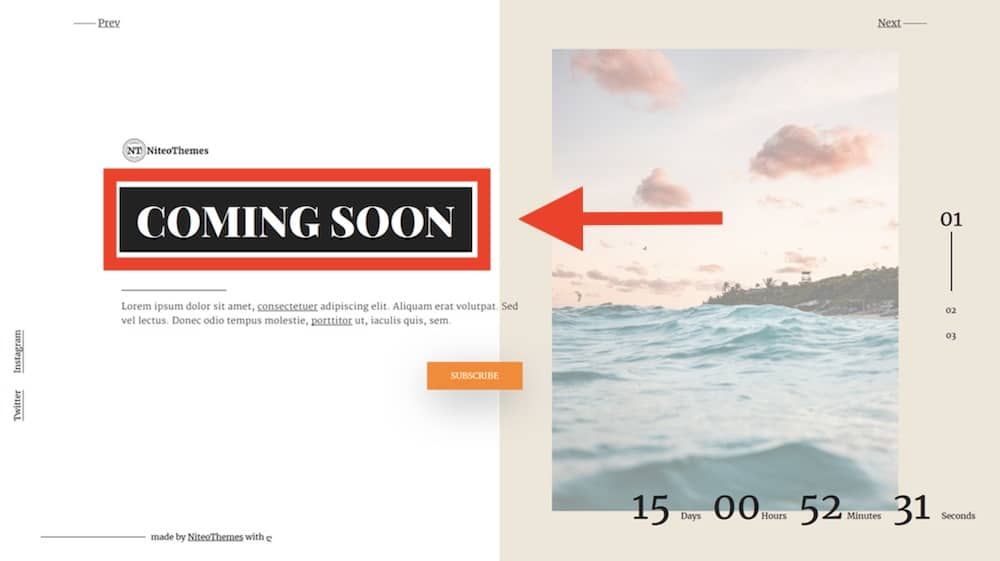
Coming soon mode is mainly for a website that has not yet officially launched.
Instead of simply telling visitors the site is unavailable, you can use the page to build interest before launch.
Useful features include:
- Email signup forms
- Countdown timers
- Social media links
- Launch announcements
- Product previews
- Contact forms
- Brand messaging
- Early-access offers
Unlike temporary maintenance mode, a coming soon page may use a normal HTTP 200 response because the page itself is intended to be visible.
This makes it much better suited to pre-launch marketing.
Will WordPress Maintenance Mode Hurt SEO?
Usually, no, as long as maintenance mode is set up correctly and only used temporarily.
The key detail is the HTTP status code your site returns while it is unavailable.
A proper maintenance mode should use a 503 Service Unavailable response.
This tells search engines that the downtime is temporary and that they should return later, rather than treating the page as permanently removed.
Problems are more likely when:
- Maintenance mode stays active for too long
- The plugin returns the wrong status code
- Search engines are blocked indefinitely
- Important pages disappear without a temporary response
- A coming soon page is used incorrectly on an established site
- Caching causes the maintenance page to remain visible after the site is back
For short updates, redesigns, migrations, or technical fixes, a correctly configured 503 response is usually the safest option.
I would also avoid leaving maintenance mode active for days or weeks unless there is a good reason.
The longer search engines keep finding an unavailable site, the greater the chance that crawling, indexing, and rankings may be affected.
Once the work is finished, disable maintenance mode, clear your cache, and check the site in an incognito window to make sure visitors and search engines can access it normally again.
Conclusion: Get The Right Maintenance Mode Plugin
The best maintenance mode plugin depends on how much control you need while your site is offline.
For the most complete setup, SeedProd is my top pick.
It combines maintenance mode, coming soon pages, templates, and a visual builder without making the workflow difficult.
If you want a strong free option, LightStart gives you an impressive mix of countdowns, forms, SEO controls, and access settings.
CMP is another excellent choice if you prioritize visual customization and pre-launch pages.
For simpler jobs, Maintenance and Under Construction keep things practical, while Slim Maintenance Mode is perfect when you just want to activate maintenance mode, get a proper 503 response, and get back to work.
You do not need the plugin with the MOST features.
You need one that handles downtime correctly, gives the right people access, and makes it easy to bring your site back online when the work is done.
FAQs About WordPress Maintenance Mode Plugins
What is a WordPress maintenance mode plugin?
A WordPress maintenance mode plugin temporarily hides your regular website and displays a custom maintenance page to visitors.
What is the best free WordPress maintenance mode plugin?
LightStart is one of the strongest free options because it includes maintenance mode, coming-soon pages, countdowns, forms, SEO controls, and access settings.
What is the difference between maintenance mode and coming soon mode?
Maintenance mode is for an existing website that is temporarily unavailable while you make changes. Coming soon mode is better for a new website that has not officially launched yet and may need email capture, countdowns, or pre-launch marketing.
Does WordPress have a built-in maintenance mode?
Yes, but it is very basic. WordPress can automatically show a temporary maintenance message during certain updates, but you get far more control over design, access, timing, and SEO by using a dedicated plugin.
Does maintenance mode affect SEO?
It usually should not cause problems if it is used correctly and only for a short period. A proper maintenance page should return a 503 Service Unavailable status so search engines know the downtime is temporary.
Should maintenance mode return a 503 status code?
Yes, for an established site that is temporarily offline, 503 is generally the correct response. It tells search engines to come back later instead of treating the page as permanently unavailable.
Can logged-in users still access WordPress during maintenance mode?
Usually, yes. Most good maintenance plugins let administrators and selected user roles bypass the maintenance page so they can keep working while visitors see the temporary screen.
Can clients preview a site while maintenance mode is active?
Some plugins allow this through role-based access, whitelisting, or special preview URLs. CMP is especially useful here because it supports custom preview access.
Can I schedule WordPress maintenance mode?
Some plugins can schedule when maintenance mode ends or automatically disable it after a set time. Under Construction, for example, includes automatic end-date controls.
Can I collect email addresses on a maintenance or coming soon page?
Yes. Plugins such as SeedProd, LightStart, and CMP can add signup forms or integrate with email marketing tools. This is especially useful for coming soon pages before a site or product launches.
Do I need a page builder for maintenance mode?
No. If you only need a basic temporary page, a lightweight option such as Slim Maintenance Mode may be enough.
Can maintenance mode work with caching plugins?
Yes, but caching can sometimes cause an old maintenance page to remain visible after you disable it. Always clear your site, server, or CDN cache after switching maintenance mode on or off.
How do I disable maintenance mode if my site still looks offline?
First disable the maintenance plugin and clear all caches. Then check the site in an incognito window. If the maintenance page still appears, also check your CDN, hosting cache, and whether another maintenance plugin or custom rule is still active.