


Getting someone to click one article is great.
Getting them to read three, four or five? Much better.
That’s where a good WordPress related posts plugin earns its keep.
Instead of letting readers hit the end of a post and disappear, it can automatically surface more useful content based on categories, tags, keywords or deeper relevance matching.

And not every plugin does this the same way.
Some focus on smart automatic recommendations.
Others give you full manual control, place related posts inside the article, or use thumbnails to make the next click much harder to ignore.
I compared the strongest options for different setups, from lightweight automatic plugins to more advanced tools with custom matching, caching and layout controls.
Quick tip: Don’t just chase pretty thumbnails. If the recommendations aren’t actually relevant, they won’t get clicked.
This post covers:
- Quick Picks: Best WordPress Related Posts Plugins
- Best Related Post WordPress Plugins
- What To Look For In A WordPress Related Posts Plugin
- Automatic Vs Manual Related Posts
- Where Should You Display Related Posts?
- Are Related Posts Good For SEO?
- Conclusion: Choose The Right Related Posts Plugin
- FAQs About Related Post WordPress Plugins
Quick Picks: Best WordPress Related Posts Plugins
Short on time? Start with these:
- Best Overall: Contextual Related Posts
- Best For Advanced Matching: YARPP
- Best For In-Content Recommendations: Inline Related Posts
- Best For Visual Related Posts: Related Posts Thumbnails
- Best For Manual Control: Custom Related Posts
- Best For Category & Tag Matching: Related Posts by Taxonomy
- Best Lightweight Automatic Option: Related Posts for WordPress
- Best If You Already Use Jetpack: Jetpack Related Posts
Best Related Post WordPress Plugins
1. Contextual Related Posts

Contextual Related Posts is the one I’d start with for most content-heavy WordPress sites.
Why?
Because it doesn’t just grab a few posts from the same category and call it a day.
Its matching algorithm analyzes the title and content of the current post, then finds other articles that are genuinely related.
You can also factor in categories, tags and selected custom fields if you want more control. That usually produces much smarter recommendations than basic taxonomy-only matching.
Setup is pleasantly simple too.
Activate it and related posts can appear automatically after your content.
But if you want more control, you can place them with a Gutenberg block, widget or shortcode instead.
Custom post types are supported, thumbnails are optional, and you can exclude specific categories or tags from appearing.
And if you go Pro, things get serious.
You can fine-tune title, content, excerpt and taxonomy weighting, lazy-load recommendations, control cache duration, prioritize cornerstone content, track clicks with UTM parameters and use native integrations for Elementor, Bricks and WPBakery.
There’s even WooCommerce-related product support.
That’s a lot of muscle for something that can still work perfectly fine after a simple install-and-activate.
- Best for: Blogs, magazines and content-heavy sites that want smart automatic recommendations without giving up control
- Free version includes: Automatic contextual matching, title/content analysis, taxonomy matching, caching, thumbnails, excerpts, custom post types, Gutenberg block, WP widgets, shortcode, REST API and exclusions
- Free version doesn’t include: Advanced weighting controls, lazy loading, configurable cache times, cornerstone-post prioritization, click tracking and deeper page-builder integrations
- Why we like it: It strikes a really good balance between relevance, flexibility and performance — without making setup a chore
2. YARPP – Yet Another Related Posts Plugin

YARPP is one of the old-school names in related posts, but it still earns its place because the matching logic goes deeper than a simple category check.
Its algorithm can weigh titles, content, tags, categories and custom taxonomies to decide what actually belongs together.
You can tweak that logic too, which is handy if your site has a large content library and you don’t want random “related” posts sneaking in.
Display options are flexible as well.
You can show related content automatically below posts, or place it with a Gutenberg block, shortcode, widget, template function or REST API.
List and thumbnail layouts are built in, and there’s a full custom template system if you want tighter design control.
Built-in caching helps performance, and YARPP supports custom post types, WooCommerce, Multisite, and bbPress too.
That makes it a better fit for bigger or more complex sites than some super-basic alternatives.
- Best for: Larger content sites that want more control over how related posts are matched
- Free version includes: Advanced relevance algorithm, title/content/taxonomy weighting, caching, list and thumbnail layouts, Gutenberg block, shortcode, widget, custom templates, REST API and custom post type support
- Why we like it: You can fine-tune relevance instead of relying on a basic same-category rule
- What I’d improve: Current WordPress compatibility testing needs to catch up
3. Inline Related Posts
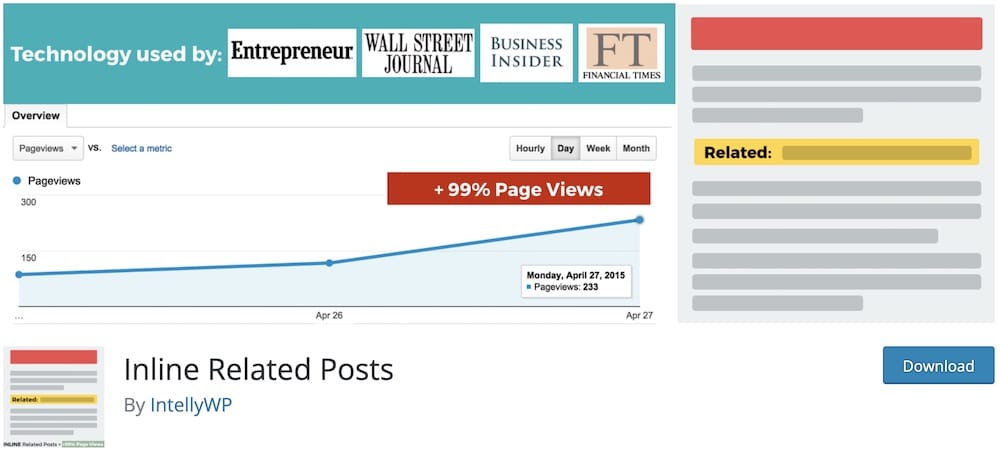
Inline Related Posts takes a different route from most plugins in this roundup.
Instead of waiting until the reader reaches the bottom of the article, it drops related-post boxes inside the content itself.
Smart move.
Readers are already engaged, so you’re giving them another useful click before they even think about leaving.
The plugin can insert multiple related-post boxes automatically, and its placement logic is designed to avoid chopping up headlines or paragraphs.
You also get 20+ style combinations with different themes, colors and hover effects, so the boxes don’t have to look painfully generic.
If you want more control, there’s a Gutenberg block and shortcode support.
Moreover, you can also target specific posts, categories or tags manually, which is handy when you want to guide readers toward a particular cluster of content.
This plugin also works nicely alongside another related-post plugin because it focuses on in-content placement rather than replacing the recommendations at the end of the post.
- Best for: Blogs and long-form content where you want recommendations to appear while people are still reading
- Free version includes: Automatic in-content related-post boxes, multiple placements, 20+ style combinations, Gutenberg block, shortcode targeting and category/tag controls
- Free version doesn’t include: Some of the additional box styles and premium-only design features
- Why we like it: It catches readers before they reach the bottom of the page, which makes related content much harder to miss
4. Related Posts Thumbnails Plugin
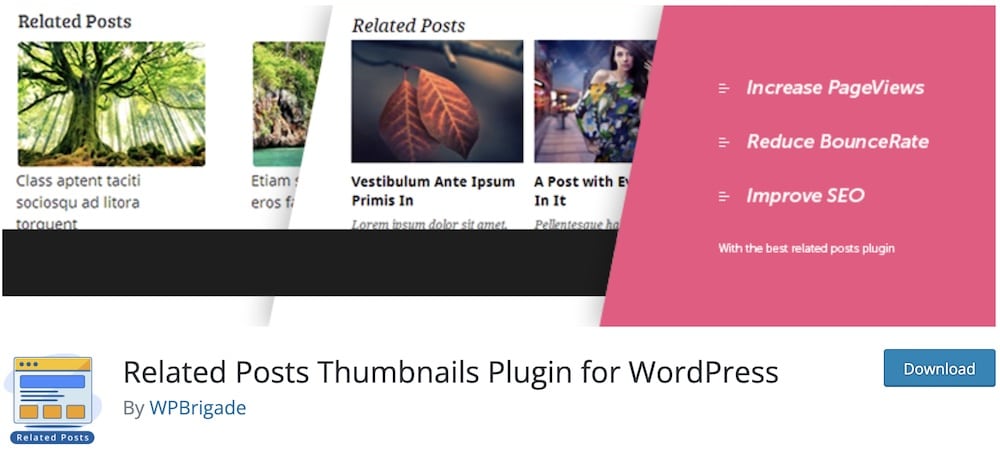
If your content relies heavily on images, Related Posts Thumbnails makes a lot of sense.
It puts the visual side front and center by showing related posts with featured-image thumbnails, titles and optional excerpts.
That works especially well for food blogs, travel sites, magazines, design-heavy content and any niche where the image often does half the convincing.
You can control thumbnail size, number of related posts, title length, excerpt length, background colors, borders, text styling and hover effects.
Placement is flexible too — automatic display, shortcode or widget.
Matching can be based on categories, tags or other post relationships, and you can exclude specific posts if something keeps showing up where it shouldn’t.
Useful.
What I like most is that the plugin stays focused. It simply makes related posts look more clickable.
- Best for: Blogs and visual content sites where thumbnails play a big role in getting the next click
- Free version includes: Featured-image thumbnails, titles, excerpts, styling controls, category/tag matching, shortcode placement, widgets and exclusions
- Why we like it: It makes related content much easier to notice without overcomplicating the setup
- What I’d improve: Matching is more basic than YARPP or Contextual Related Posts, so relevance depends more heavily on how well your categories and tags are organized
Note: If you want even more control over how posts appear visually, you can also use one of these WordPress grid plugins to build custom post layouts.
5. Custom Related Posts
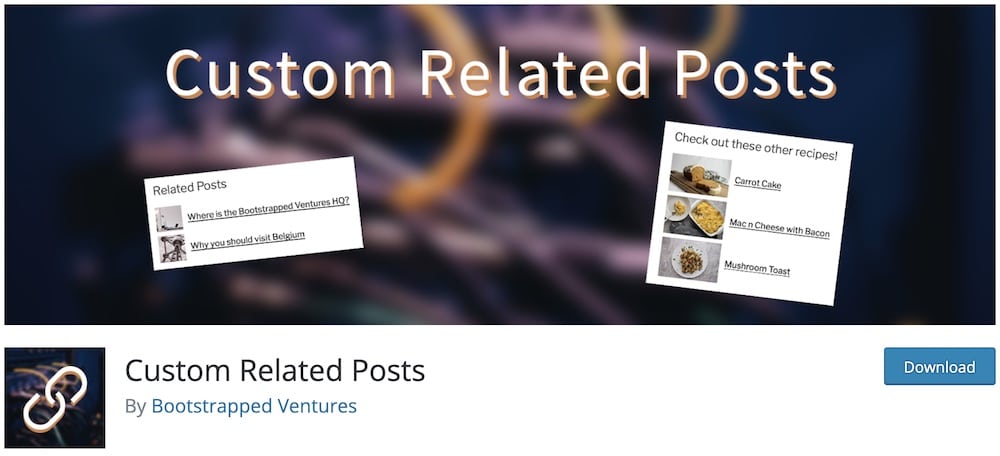
Custom Related Posts is for anyone who doesn’t want an algorithm making every decision.
You choose exactly which posts belong together.
That makes it especially useful for cornerstone content, tutorials, tightly connected article series, or smaller sites where you already know which pages should point to each other.
No guessing. No weird “related” suggestions that aren’t actually related.
You can connect posts, pages and custom post types directly from the editor, decide whether the relationship should work one way or both ways, and display the results with a block, shortcode or widget.
I also like the newer search controls.
You can search related content by title, ID or the default search method, manually reorder recommendations in the Block Editor, and customize the output a bit more than before.
The obvious tradeoff?
Manual control takes time.
For a site with 5,000 posts, I’d probably let Contextual Related Posts or YARPP do more of the heavy lifting.
But for carefully curated content, Custom Related Posts is excellent.
- Best for: Smaller sites, cornerstone content and publishers who want full editorial control
- Free version includes: Manual post relationships, one-way or two-way linking, custom post types, Gutenberg support, widget, shortcode, featured images, author/date/excerpt fields and manual ordering
- Why we like it: You decide exactly what gets recommended instead of hoping an algorithm gets it right
- What I’d improve: Manual selection can become time-consuming on very large content libraries
6. Related Posts by Taxonomy
Related Posts by Taxonomy keeps relevance nice and logical.
Instead of trying to “understand” the whole article, it looks at shared categories, tags, custom taxonomies, and post types. Posts with the most terms in common rise to the top.
Clean. Predictable.
That makes it especially good for sites with a tidy content structure.
If you already organize posts carefully by topic, category, tag, location, product type, or another custom taxonomy, this plugin can turn that structure into useful recommendations without much drama.
You get plenty of control too.
Related posts can appear automatically after the content, or you can use a widget or shortcode.
They can display as links, thumbnails, excerpts, or even full posts, and you can include or exclude specific terms or posts.
It also includes nice extras under the hood, including optional persistent caching, Ajax loading, REST API support, custom templates, and filters for developers who want to fine-tune behavior.
- Best for: Sites with well-organized categories, tags, or custom taxonomies
- Free version includes: Taxonomy-based matching, multiple post types, automatic placement, widget, shortcode, thumbnails, excerpts, custom templates, exclusions, REST API, AJAX loading, and optional caching
- Why we like it: You get very transparent matching logic — the plugin shows related content based on the structure you already created
- What I’d improve: It works best when your taxonomy setup is clean; messy tags and categories can lead to messy recommendations too
7. Related Posts for WordPress
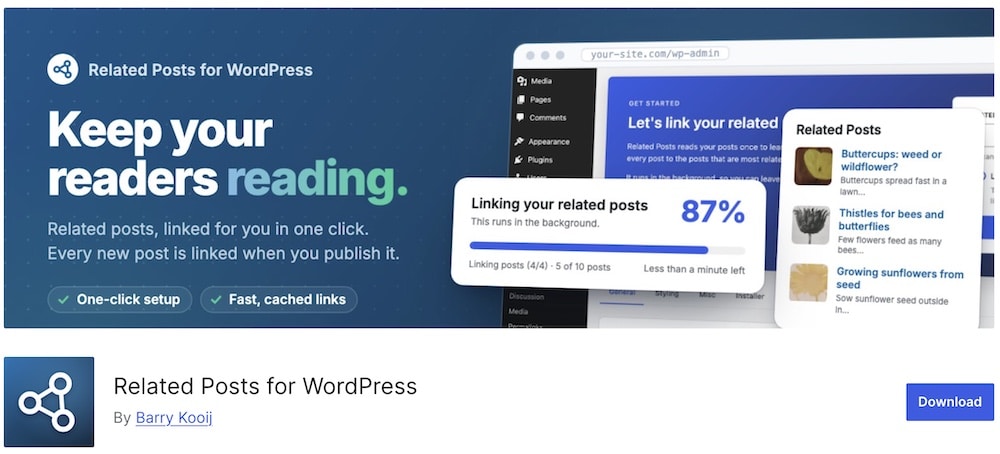
Related Posts for WordPress is a nice middle ground between “fully automatic” and “I still want some control.”
Activate it, choose how many related posts you want, hit start, and the plugin analyzes your content in the background.
You can keep working while it builds the relationships for you. Easy.
The matching is smarter than it looks, too.
It now weighs the most meaningful words in each post, gives extra importance to titles, and also considers categories, tags and internal links.
It ignores common filler words across 57 languages, which helps keep recommendations more relevant.
Performance is another big plus.
Related Posts for WordPress stores its matching data in separate database tables and does the heavy work in the background or when a post is published.
When visitors load a page, it only reads the relationships that were already calculated. Less work on the fly.
And if the automatic picks miss the mark? No problem.
You can manually add, remove or reorder related posts, and those manual choices stay in place even when the plugin rebuilds its automatic links.
- Best for: Blogs and larger content sites that want automatic related posts without adding much front-end overhead
- Free version includes: Automatic background matching, content/title/category/tag analysis, manual overrides, modern related-post layout, shortcode, widget and separate database tables for faster retrieval
- Free version doesn’t include: Cross-post-type matching, custom taxonomy support, adjustable relevance weights, overwritable templates and some advanced styling controls
- Why we like it: It does the heavy matching work behind the scenes, then keeps front-end output nice and light
- What I’d improve: The free version is intentionally simpler, so users who want deeper matching controls will probably outgrow it
8. Jetpack Related Posts
Jetpack Related Posts makes the most sense when Jetpack is already part of your setup.
Then it’s almost a freebie.
The feature analyzes your post content, categories and tags to decide what should appear next.
It won’t show anything unless Jetpack can find at least three decent matches, which helps avoid those painfully random “related” recommendations that aren’t related at all.
The biggest advantage is performance.
Jetpack does the analysis, processing and serving from its own cloud infrastructure, so your server doesn’t have to do the heavy matching work every time someone opens a post.
That’s especially handy on bigger blogs or lower-powered hosting.
There is one tradeoff, though.
You can’t manually handpick which posts appear.
Jetpack handles that automatically, and results are cached for up to 12 hours.
- Best for: Sites that already use Jetpack and want automatic related posts without extra server load
- Includes: Automatic contextual matching, category/tag signals, thumbnails, list/grid layouts, Related Posts block, cloud processing and built-in caching
- Why we like it: If Jetpack is already active, you get a capable related-post system without adding another plugin
- What I’d improve: Manual post selection would make it much more flexible for cornerstone content and carefully curated article clusters
What To Look For In A WordPress Related Posts Plugin
- Matching quality: Relevance matters more than fancy design. If the suggestions are weak, people won’t click them.
- Matching method: Check whether the plugin uses categories, tags, content analysis, custom taxonomies, manual selection, or a mix of several signals.
- Manual control: Even the smartest algorithm can miss sometimes. Being able to remove, replace, or reorder related posts is a big plus.
- Placement options: After the article is standard, but in-content recommendations, widgets, blocks, and shortcodes give you much more flexibility.
- Thumbnails: Visual previews can make related posts far more noticeable, especially on travel, food, fashion, or magazine-style sites.
- Custom post type support: Important if your site includes reviews, products, portfolios, recipes, or other content beyond regular blog posts.
- Exclusions: You may want to keep certain categories, tags, posts, or post types out of the recommendations completely.
- Caching: Related-post matching can involve a lot of database work. Good caching helps keep things quick. (And if performance is already an issue across your site, one of these WordPress caching plugins can help beyond just the related-post section.)
- Mobile layout: Related posts should stay readable and clickable on small screens.
- Styling controls: You should be able to adjust titles, thumbnails, spacing, columns, and basic colors without rebuilding the entire section.
- Blocks and shortcodes: These make it much easier to place recommendations exactly where you want them.
- Page builder compatibility: Worth checking if you use Elementor, Bricks, WPBakery, or another builder for your post templates.
- Performance: Avoid loading a giant recommendation engine if all you need is three links below an article. Keep the setup proportional to the job.
Automatic Vs Manual Related Posts
Automatic Related Posts
Automatic plugins do the matching for you.
Depending on the tool, they may compare:
- Titles
- Post content
- Categories
- Tags
- Custom taxonomies
- Keywords
- Internal links
- Other relevance signals
This is the better choice for larger blogs, magazines, and content-heavy websites where manually linking every article would become a full-time job.
The upside is obvious: less work.
The downside? Even a strong algorithm can occasionally suggest something weird.
That’s why I like plugins that let you manually override the automatic results when needed.
Manual Related Posts
Manual related posts give you complete editorial control.
You decide exactly which articles appear.
No algorithm. No surprises.
This works especially well for:
- Cornerstone content
- Tutorial series
- Product guides
- Closely connected articles
- Smaller blogs
- Carefully planned content clusters
The tradeoff is time.
If you have hundreds or thousands of posts, manually choosing related content for every page gets old very quickly.
Where Should You Display Related Posts?
Placement matters almost as much as relevance.
The best spots to test are:
- After the article: The classic option. Readers finish the post and immediately get a useful next step.
- Inside the content: Great for longer articles because you catch readers while they’re still engaged.
- Below key sections: Place a related article exactly where the topic naturally connects. This can work really well for guides and tutorials.
- In the sidebar: Still useful on desktop, but less reliable on mobile because sidebars often get pushed far down the page.
- Inside a dedicated “Read Next” block: Perfect for cornerstone content, topic clusters, and handpicked recommendations.
For most blogs, I’d keep it simple:
- 1–2 in-content recommendations
- A larger related-post section at the end
That gives readers multiple chances to keep exploring without making the page look stuffed with links.
For ULTIDA, I prefer them to be at the end of the article.
Are Related Posts Good For SEO?
Yes – indirectly.
Related posts don’t magically push a page higher in Google just because they exist.
What they can do is improve your internal linking and help search engines understand how your content connects.
They can also help with:
- Content discovery: Search engines can find deeper articles more easily.
- Topic clusters: Related links reinforce which pages belong to the same subject.
- Internal link distribution: Older or deeper posts get more chances to receive links.
- User engagement: Readers may visit more pages instead of leaving after one article.
- Orphan content: Related-post links can help reduce the number of pages sitting alone with little internal support.
But relevance matters.
If a plugin keeps showing loosely connected posts just to fill a box, that doesn’t help much.
I’d rather show three genuinely useful related articles than eight random ones.
And I wouldn’t use a related-post plugin as a replacement for manual internal linking either.
The best setup is both:
Use deliberate in-content links where they make sense, then let related posts catch additional clicks and connect the rest of the content automatically.
Conclusion: Choose The Right Related Posts Plugin
For most sites, Contextual Related Posts is my favorite all-round choice. It combines smart automatic matching with enough flexibility to keep things relevant.
If you want deeper control over the matching logic, YARPP is the better fit.
For in-content recommendations, Inline Related Posts is the obvious pick. And if visuals matter more than advanced matching, Related Posts Thumbnails keeps things simple and clickable.
Prefer full editorial control? Go with Custom Related Posts.
If your categories and tags are already well organized, Related Posts by Taxonomy can do a great job without overcomplicating things.
Related Posts for WordPress is a strong lightweight automatic option, while Jetpack Related Posts makes the most sense if Jetpack is already active on your site.
My advice?
Start with relevance.
Then think about placement, design and extra controls.
FAQs About Related Post WordPress Plugins
What are related post plugins in WordPress?
Related post plugins in WordPress are tools that display links to content that is similar or relevant to the current post or page. These plugins help increase engagement by guiding readers to other articles on your site, thus improving user experience and potentially reducing bounce rates.
How do related post plugins determine which posts to show?
Most related post plugins use algorithms based on factors like post content, categories, tags, or even custom taxonomies to determine relevancy.
Can I customize the appearance of related posts?
Yes, you can typically customize how the related posts are displayed. This includes changing the layout, the number of posts shown, whether to display thumbnails or excerpts, and the overall style to match your website’s design.
Do related post WordPress plugins impact website performance?
Related post plugins can impact website performance, particularly if they are not well-coded or need to process large amounts of data. Choosing plugins optimized for speed and performance is vital to minimize any negative impact on your site’s loading times.
Are there related post WordPress plugins that support custom post types?
Yes, many related post plugins support custom post types. This feature allows you to display related content from different types of posts, such as portfolio items, products, or any other custom post types you have on your WordPress site.
Are related post WordPress plugins good for SEO?
Yes, related posts can help with SEO by keeping users on your site longer and reducing bounce rates. More internal links also help search engines crawl your content more efficiently.
Is there a way to show related posts without a plugin?
Yes, you can manually link related posts in your content or use custom coding for a lightweight approach.
::
Note: This article was originally published on November 20, 2021. But our team regularly reviews it and updates it with necessary improvements for accuracy.